
Remove Object from Photo
Select an unwanted object. Give the surrounding scene room to breathe.
 No account needed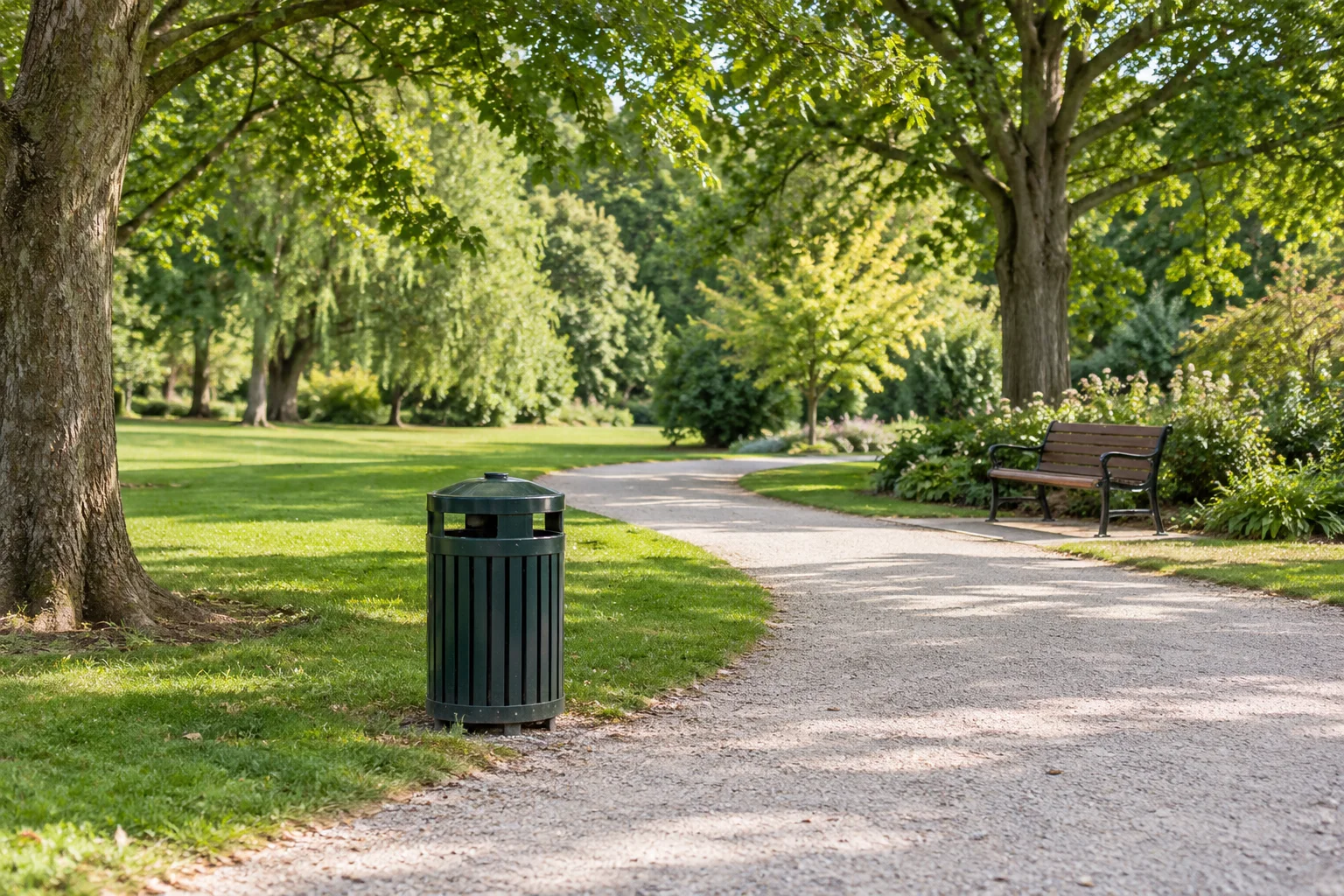
Paint over the object you want to remove.
Drop a new photo anywhere to replace this one. No need to delete it first.
Up to 3 AI attempts per network per day, shared by person and object removal. Downloads do not count.
Small distraction. Thoughtful repair.
A bin beside a garden path, a sign behind a portrait or a stray cable across a wall can pull attention away from your subject. This tool lets you paint a deliberate selection before asking AI to reconstruct that part of the picture.
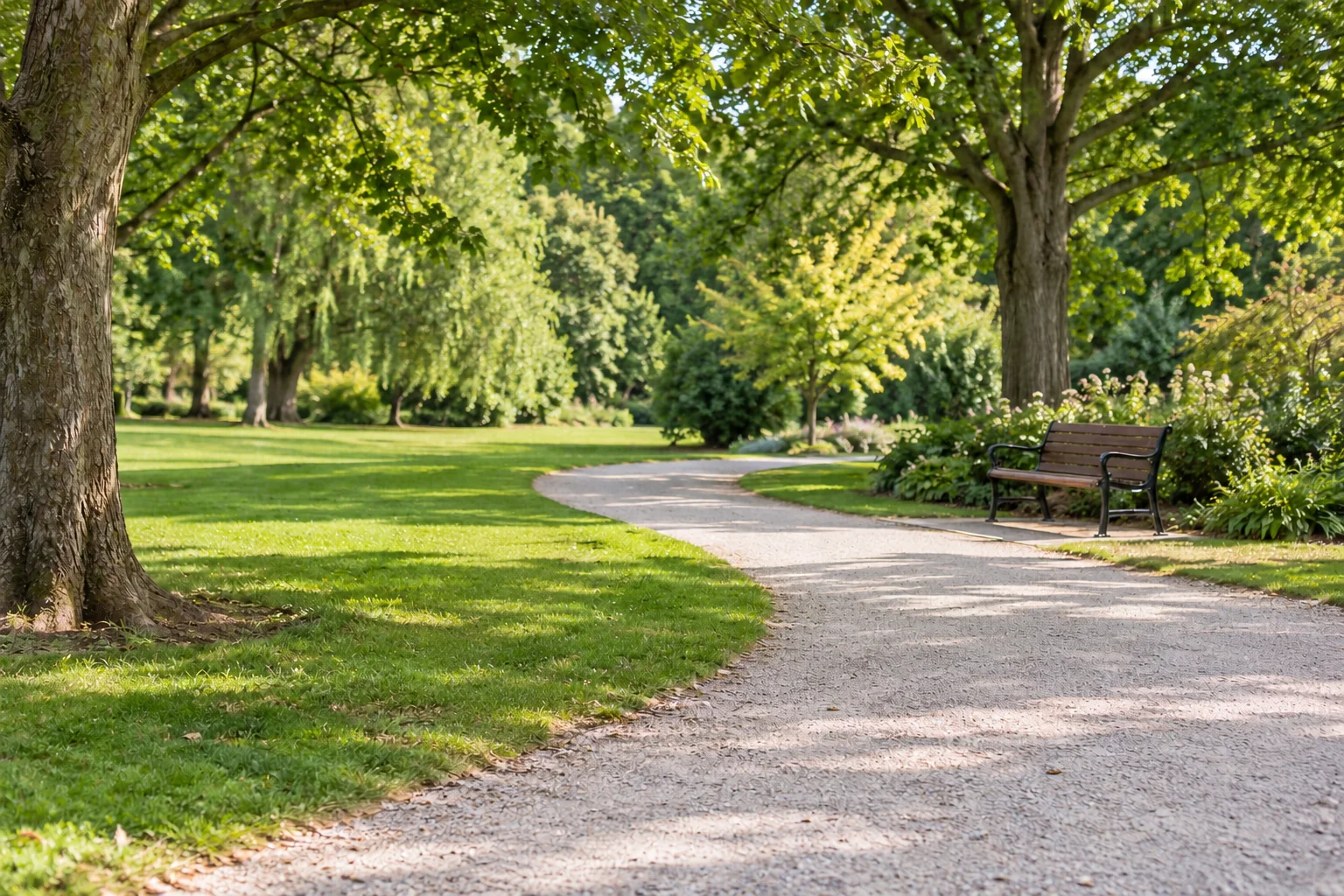
Object removal shares the same editor and daily network allowance as person removal, but the selection needs a different kind of care. Hard edges, repeating patterns and objects touching the main subject are more important than simply choosing a large brush. The animated park scene uses AI-generated photo-style assets: it is a prepared demonstration, not a tested output from this site's provider.
Select the object, not the scene
Start with the right source
Use a sharp original rather than a screenshot if possible. The neighboring pixels provide the only visible evidence of texture, perspective and lighting. If the object covers a unique sign, a face or part of a landmark, AI cannot know what was behind it.
Work around the outline
Paint the full unwanted object with a modest margin, then inspect the selection using zoom. A thin cable may need a smaller brush than a bin. The eraser removes parts of your selection; it does not erase pixels from the original photo. Undo and redo include erasing and clearing.
Include related shadows carefully
A bin and its cast shadow may need one connected repair. An overhead cable may cast a second line on a wall. Select these only when you want them removed too; leave other shadows alone. The model may still change lighting, so compare both the repaired patch and the surrounding scene.
Different objects, different checks
A bin on a path
Use the path texture and edge as visual references. After generation, follow the curb or paving line through the repaired area. Look for a kink, repeated stone, blurry patch or mismatch in the direction of the surface. This is a suggested inspection exercise, not a verified result example.
A cable over a wall
Paint along the cable rather than a wide band of wall. Check for remaining dark fragments and changes to mortar lines. Thin lines often need careful selection at both endpoints. Avoid including a face or valuable lettering merely because it is near the cable.
A sign near a building
Architectural perspective is demanding. A removed sign may reveal a plausible wall but not the real original wall. Check windows, brick patterns, railings and text. If the sign overlaps something essential, cropping may be more appropriate than generating replacement detail.
Compare before you continue
The comparison uses the same image dimensions for both views. AI processing uses a standard canvas; the edited area is mapped back to your working photo dimensions and combined with the original pixels outside your selection. Downloads contain the latest successful composite as a PNG.
After a successful edit, the next selection starts on the current result. Use Return to original to discard that working base and select on your original photo again. The previous successful result stays available for explicit download when new selection settings make it an older version. Every new Remove submission is another possible AI charge.
No AI request while you are brushing
Choosing a file, moving the viewport, resizing the brush, undoing and comparing all happen in your browser. Processing starts only after an explicit Remove action. Requests are not automatically replayed after a timeout, and the server rejects duplicate task identifiers before contacting the provider again.
The free rule is up to 3 admitted AI attempts per network per day, shared with the person-removal tool, resetting at 00:00 UTC. A shared IP may share the allowance, and changing networks can evade this approximate identification. The service can pause free generation when its total allowance is reached. Local crop and existing downloads remain available.
Use edits responsibly
Only process images you have the right to edit. Do not use a repaired photo to misrepresent evidence or remove attribution without permission. The final composite retains the original working-image pixels outside the selection; generated detail and selection boundaries still need review. Always review your output before publication or commercial use.
For a person or their shadow, switch to Remove Person from Photo. See the selection guide for controls and troubleshooting, and Privacy for the difference between browser editing and third-party generation.
Questions before you start
What kinds of objects can I select?
Small bins, stray cables, signs and other distractions can be selected manually. Complex line patterns, large missing areas and objects touching your main subject need especially careful review. These are suggested use cases, not verified AI examples.
How many free attempts are available?
The free allowance is up to 3 admitted AI attempts per network IP per day, shared by person and object removal. It resets at 00:00 UTC. People sharing an IP may share the allowance. Requests rejected before admission do not count; provider failures after admission may count. The overall service allowance can pause free AI processing. AI processing is subject to service availability.
Will everything outside the selection stay unchanged?
The final composite copies the unselected pixels from your original working image. AI reconstructs the selected area, so inspect its edges and generated details. A large source photo may first be reduced to the displayed working dimensions.
Can it recover the real background behind a person?
No. AI predicts plausible content from visible context. It cannot reveal what was actually hidden in the original scene.
Which files can I use?
Choose one JPG, PNG or WebP image up to 10 MiB and 24 megapixels. The working image is orientation-normalized and reduced to a maximum side of 1,536 pixels when necessary. Its actual dimensions are shown before generation.
Are my photos uploaded immediately?
No. Opening, selecting and brushing a photo happen in your browser. Only clicking Remove submits the working image and mask to our server and configured third-party image provider. Local cropping does not upload your photo.
What happens if processing fails?
Your image and selection are kept when possible. There is no automatic paid retry. A request already admitted for generation may count against the daily allowance even if the provider fails or the result download times out.
Can I continue editing a result?
After a valid result, editing starts from that result by default. Return to original starts a new selection on your original photo. Each new Remove action is a new potentially charged attempt. Downloads do not use AI attempts.
Will refreshing lose my latest result?
The latest successful edit can be saved in this browser for recovery, with a fixed 24-hour expiry. Expired records are removed on the next tool access. Browser storage can be cleared or unavailable, so download a copy. Start over or selecting a new photo clears the saved record.
Can I remove watermarks?
This is not a dedicated watermark-removal service. Only edit images and elements you have permission to alter. Do not remove attribution or ownership information without the necessary rights.